
-
Getting Started
-
Profile Management
-
Document Management
-
Admin Support
-
Configure 2FA
Users
All Users
The All Users screen provides a complete list of every user who has access to your WordPress site. From here, administrators can review user details, manage roles, edit accounts, and perform bulk actions.
This page is essential for maintaining security, organizing team access, and ensuring the right people have the right permissions.
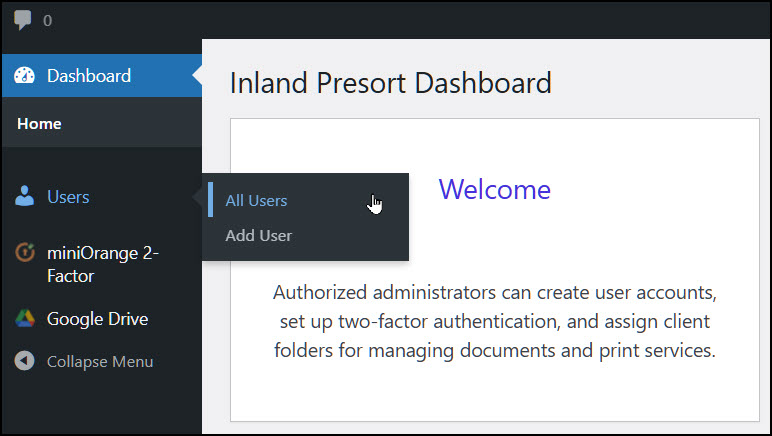
What You Can Do on This Page
View and Search Users
Browse all registered users
Use the search bar to find users by name, username, or email
Filter by role (Administrator, Editor, Author, etc.)
Manage Individual Users
Click Edit under any user to:
Change their role
Update contact information
Reset passwords
Manage capabilities (if using role plugins)
Bulk Actions
Select multiple users to:
Delete accounts
Change roles
Send password reset links (with certain plugins)
Tips
Review user roles regularly to maintain security.
Remove unused accounts to reduce risk.
Use strong roles and capabilities plugins if you need custom permissions.
Add User
Administrators can create new user accounts to grant access to the website. Each user must have a unique username and email address.
Steps to Create a New User
- Log in to the WordPress dashboard.
- In the left navigation menu, click Users.
- Select Add New User.
Complete the required fields:
Username
Enter a unique username for the new user. Once created, the username cannot be changed.Email
Enter the user’s email address. This email will be used for account notifications and password setup.First Name (optional)
Enter the user’s first name.Last Name (optional)
Enter the user’s last name.Password Setup
Leave the option “Send the new user an email about their account” enabled. The user will receive instructions to set their own password.- Under Role, select the appropriate role for the user.
- Click Add New User to create the account.
