
Welcome to our Support Center
-
Getting Started
-
Profile Management
-
Document Management
-
Admin Support
-
Configure 2FA
< All Topics
Print
Downloading Documents
Posted
Overview
The File Browser module allows users to view and download files directly from a connected storage source within your site. This article explains how the download process works, what users can expect, and the conditions required for downloads to function properly.
Steps to Download a File
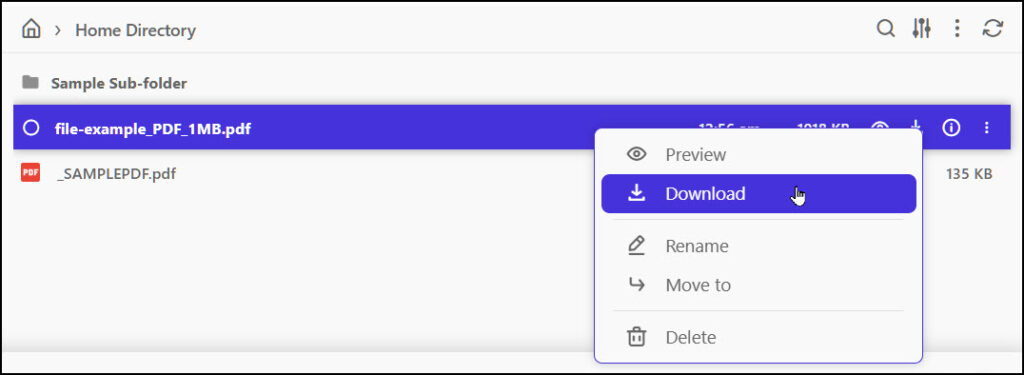
Navigate to the File Directory page.
Browse through the folders or use the search bar to locate the file you need.
Hover over the file to reveal available icons.
Select Download from the More actions download menu.
Your browser will begin downloading the file immediately.
Permissions & Access Requirements
Download availability depends on the access rules configured for the storage source and the module:
Download option will only show to the permitted user-role.
If user‑specific folders or restricted views are enabled, visibility and download rights follow those rules.
Administrators can enable or disable downloading within the module’s settings.
Table of Contents
