
-
Getting Started
-
Profile Management
-
Document Management
-
Admin Support
-
Configure 2FA
Google Drive
Overview
The FUNCTION provides a way for WordPress to connect directly to a cloud‑based storage system and display its folders and files inside the WordPress admin area. Instead of uploading documents to the Media Library or storing large files on the website server, this function lets WordPress act as a window into your cloud storage, giving administrators and approved users a simple, organized way to access shared files.
For Inland Presort, this function serves as a centralized, secure location where staff can view, manage, and share important documents without leaving the WordPress dashboard.
Browse Cloud Files Inside WordPress
It provides a built‑in file browser that mirrors your cloud storage structure, allowing you to open folders, preview documents, and navigate files just like you would in a desktop file manager.
Manage Files Efficiently
Depending on your permissions, you can:
Upload new files
Rename or move items
Delete outdated documents
Organize folders
This keeps your workflow streamlined and avoids cluttering the WordPress Media Library.
Display Cloud Files on Your Website
You can embed or display:
Downloadable documents
Public or private folders
Images, videos, or other media stored in the cloud
This ensures your website always shows the most current versions of your files.
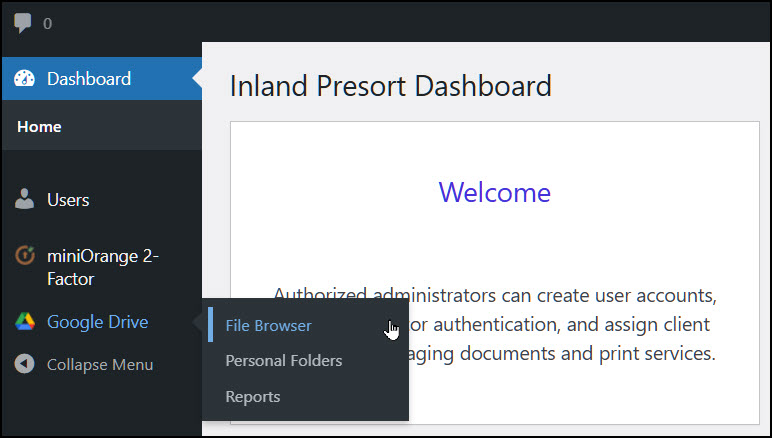
File Browser
The File Browser inside the WordPress admin provides a direct window into your connected cloud‑storage folders, allowing you to manage documents without leaving the dashboard. On this page, you can navigate through folders, preview files, and interact with your cloud‑stored content just like you would in a traditional file manager.
Administrators and approved roles can upload new files, rename or move existing items, delete outdated documents, and organize folders to keep everything structured. You can also use this page to manage which files appear on the website, ensuring that embedded or shared documents are always up to date. Overall, the File Browser serves as a centralized, easy‑to‑use workspace for maintaining Inland Presort’s shared cloud files directly from WordPress.
Additional Tools inside More Functions
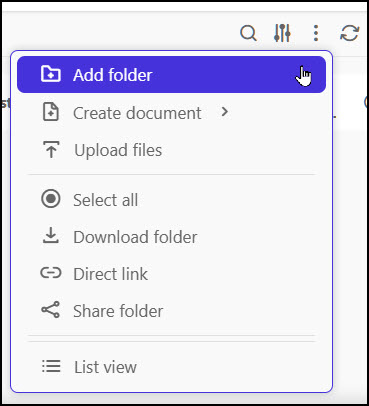
Add Folder
Creates a new folder inside the currently selected directory.
Use this to organize documents into categories, departments, or project‑specific folders.
Create Document
Allows you to generate a new blank file (such as a text document, spreadsheet, or other supported cloud‑native file type) directly within the File Browser.
This is useful when you need to start a new document without leaving WordPress.
Upload Files
Lets you upload one or more files from your computer into the selected cloud folder. This is the primary way to add new documents, PDFs, images, or other resources to your shared storage.
Select All
Highlights every file and folder in the current directory. This makes it easy to perform bulk actions such as moving, deleting, or downloading multiple items at once.
Download Folder
It allows you to download an entire folder—including all of its files and subfolders—from your cloud storage directly to your computer. When you use this option, the system automatically packages the selected folder into a single ZIP file, making it easy to save, move, or share the complete folder structure offline.
This is especially useful when you need to back up documents, review files locally, or transfer a full set of resources to another device or team member.
Direct Link
Direct Link generates a shareable URL for the selected file or folder stored in your connected cloud storage. This link points directly to the file itself, allowing you to use it anywhere you need quick access—such as posting it on social media, sending it in an email, or embedding it on a webpage.
When you choose Direct Link, the system provides a clean, ready‑to‑use URL that you can copy and paste into platforms like Facebook, Instagram, LinkedIn, X (Twitter), or any other site that accepts links. This makes it easy to share documents, images, or resources without downloading them or re‑uploading them elsewhere.
In short, Direct Link gives you a fast, convenient way to share cloud‑stored files externally while keeping the original file in one secure location.
Share Folder
Share Folder lets you generate a shareable link to an entire folder stored in your connected cloud storage. Instead of sharing just one file at a time, this option gives access to everything inside the selected folder — including all documents, images, and subfolders.
It works similarly to Direct Link, but instead of linking to a single file, it provides a link to the whole folder. This makes it ideal when you need to give someone access to a complete set of resources without downloading or emailing multiple items. Depending on your cloud‑storage permissions, the shared folder can be view‑only or editable, giving you control over how others interact with its contents.
In short, Share Folder is the easiest way to provide broad access to a collection of files in one step.
List View
List View changes the way your files and folders are displayed inside the File Browser. Instead of showing large thumbnails or icons, List View presents your items in a clean, compact list format. This layout makes it easier to scan file names, see details like size or modification date (when available), and work with long lists of documents more efficiently.
List View is especially helpful when you need to quickly sort, compare, or manage many files at once. It’s simply an alternative to Thumbnail View—offering a more streamlined, information‑focused way to browse your cloud‑stored content.
Personal Folders
The Personal Folders section displays a list of all WordPress users who have access to the system and shows the individual cloud‑storage folders assigned to each of them. These folders act as private or semi‑private spaces where users can store or access documents that belong specifically to them. All personal folders exist under the main Inland Presort cloud directory, keeping everything organized under one central account.
This page gives administrators a clear overview of who has a personal folder, what it contains, and how access is structured.
1. View All Users and Their Assigned Folders
Every user is listed along with the folder(s) assigned to them.
This makes it easy to confirm who has access to what and ensures that each user’s documents are stored in the correct location.
2. Assign a Folder to One or More Users
Administrators can create or link a folder to any user. You can:
Assign a new personal folder to a single user
Assign the same folder to multiple users (for shared workspaces)
Reassign folders if a user’s role or responsibilities change
This is useful for onboarding new staff or organizing team‑specific document areas.
3. Remove Folder Assignments
If a user no longer needs access to a folder, you can remove the assignment with a single action. Removing a folder assignment:
Does not delete the folder itself
Simply removes the user’s access to it
Helps keep permissions clean and up to date
This is especially important when staff change roles or leave the organization.
4. Maintain a Clean, Centralized Folder Structure
Because all personal folders live under the main Inland Presort cloud directory, administrators can keep everything organized in one place. This ensures:
Consistent naming
Easy navigation
Clear ownership of documents
Better long‑term file management
