
2-Factor Authentication
1. Open Configure 2FA page
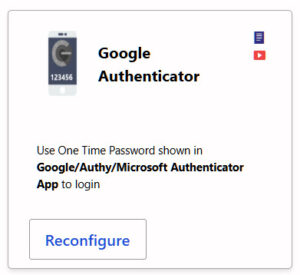
In the Google Authenticator box click on the button.
2. Click Configure or Reconfigure
If this is your first time setting it up, the button will read Configure. If you previously configured it, the button will show Reconfigure.
3. Scan the QR Code
Open your preferred authenticator app (Google Authenticator, Microsoft Authenticator, Authy, etc.) and scan the QR code displayed on the screen.
4. Enter the Verification Code
Your authenticator app will generate a 6‑digit code. Enter it into the verification field.
5. Save the Configuration
Once verified, the Authenticator App method becomes active as a secondary 2FA option.
1. Open Configure 2FA page
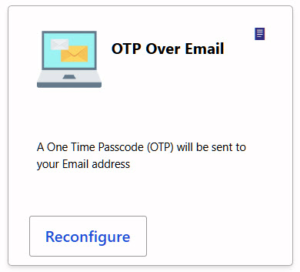
IN the OTP over Email box click on the button.
2. Click Configure or Reconfigure
If you have not set this up before, the button will read Configure. If it has been configured previously, you will see Reconfigure.
3. Confirm Your Email Address
miniOrange will display the email address associated with your account. Confirm that it is correct.
4. Receive the OTP
Click Send OTP. A one-time passcode will be sent to your email inbox.
5. Enter the OTP
Retrieve the code from your email and enter it into the verification field.
6. Save the Configuration
Once verified, OTP over Email becomes available as a secondary 2FA method.
